
Prepared by the Sea Imagine AI team with AI writing assistance. The measurements below use a local Next.js build and a synthetic test clip.
A preview card can tell visitors what a clip contains before downloading the clip itself. On a portfolio grid, that means each card starts with a still. The video request begins only when a visitor opens the preview. This small App Router example also keeps the still available if a video is missing.
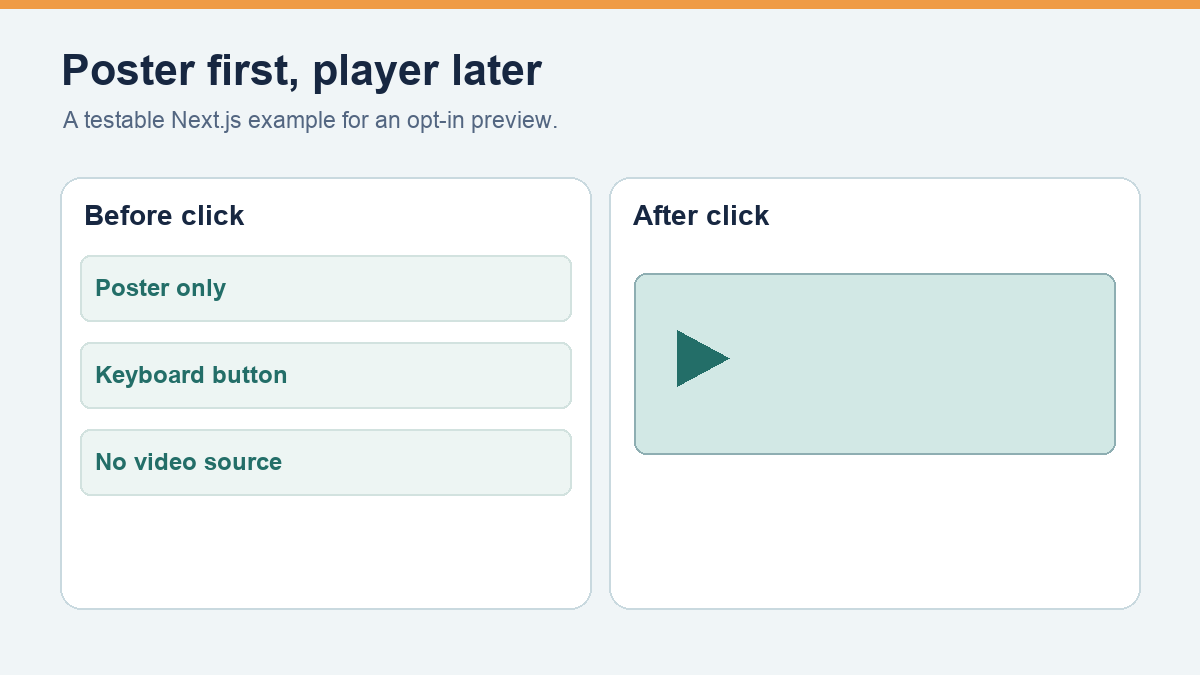
The initial render gives the viewer an image and a button without mounting the video player.
Keep the initial render independent of the video
Give the card a poster image and a native button. Keep the <video> element out of the initial render. Treat preload as a browser hint once a video exists, rather than as a guarantee that a mounted video stays idle. A keyboard user can activate a native button with Space or Enter. After the player appears, its native controls handle playback.
Save the following in app/ClipPreview.jsx. The client boundary is needed because the component responds to clicks and media errors.
"use client";import { useId, useState } from "react";export default function ClipPreview({ poster, clip }) { const stageId = useId(); const [state, setState] = useState("idle"); return ( <section aria-label="Video preview"> <button type="button" aria-controls={stageId} aria-expanded={state === "ready"} onClick={() => setState(state === "ready" ? "idle" : "ready")} > {state === "ready" ? "Hide preview" : "Load preview"} </button> <div id={stageId} className="clip-stage"> {state === "ready" ? ( <video aria-label="Five-second test pattern" controls playsInline preload="metadata" poster={poster} src={clip} onError={() => setState("error")} /> ) : ( <img width="640" height="360" src={poster} alt="Colour bars and geometric blocks in the test clip" /> )} </div> {state === "error" && ( <p role="status">Video unavailable. The still preview is available.</p> )} </section> );}In a standard Next.js App Router project, import it from your page and pass local paths. Put the MP4 and poster in public/. A small, original local video works for the full test.
import ClipPreview from "./ClipPreview";export default function Page() { return ( <main> <h1>Click-to-load video preview</h1> <ClipPreview poster="/sample-poster.jpg" clip="/sample.mp4" /> </main> );}Reserve the stage dimensions before either media element loads. That gives the still and player the same footprint.
.clip-stage { aspect-ratio: 16 / 9; background: #101923; }.clip-stage img, .clip-stage video { display: block; width: 100%; height: 100%; object-fit: contain;}Use alt text and a player label appropriate to the file you add. For a clip with speech, provide captions. An illustrative silent test pattern does not need speech captions.
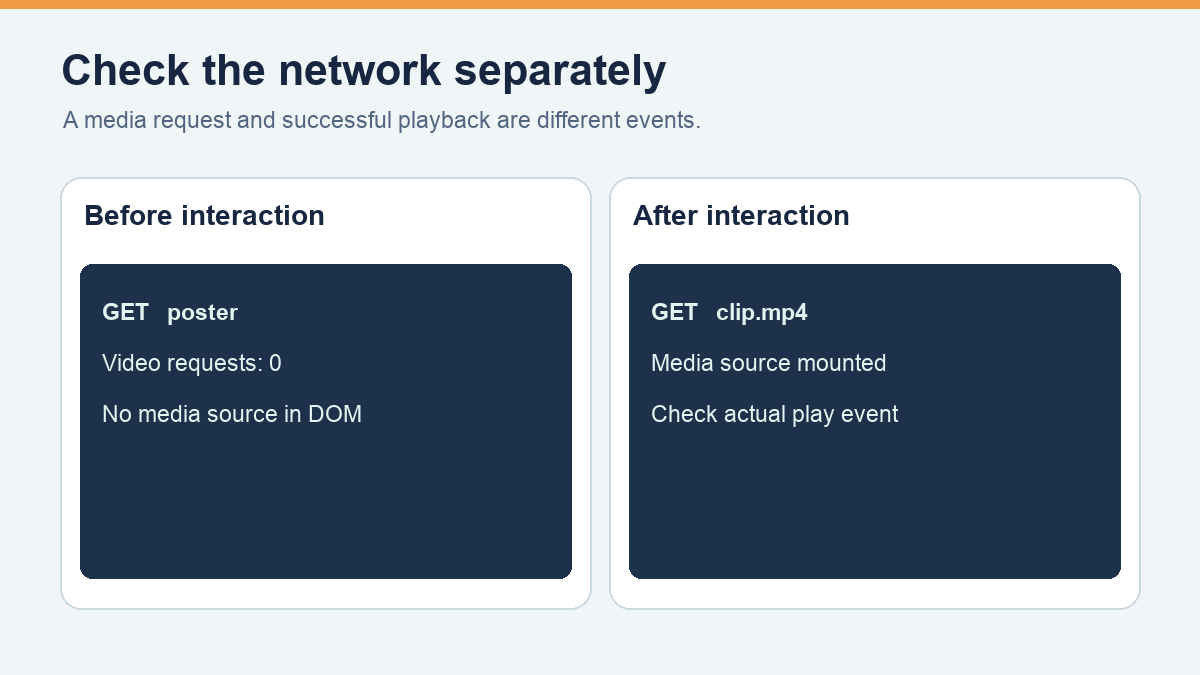
Loading a source and starting playback are two different events. Test them separately.
Check the request and playback separately
I ran the example in Chrome against Next.js 16.4.6 and a five-second test-pattern MP4. The local HTTP log showed the page request first, with no MP4 request until I pressed Space on Load preview. The first video response was 206 Partial Content. The player showed a five-second duration and remained paused. After clicking its native Play control, the browser reported that playback had started and current time moved past zero.
| Action | Observed in the local check |
|---|---|
| Open the page | Still image and button, no video element or MP4 request |
| Press Space on Load preview | Video element added, MP4 range request returned 206 |
| Press Play in the player | Clip started from the beginning |
| Press Hide preview | Video element removed and still restored |
| Load an intentionally missing source | 404, still restored and status message shown |
An additional range request or cache response is normal. This test checks when a video request starts, rather than asserting exactly one request. Hiding removes the player. Reopening mounts a fresh player state, and the browser may reuse cached bytes. Test touch and the browsers your users actually use before relying on the same interaction on those devices.
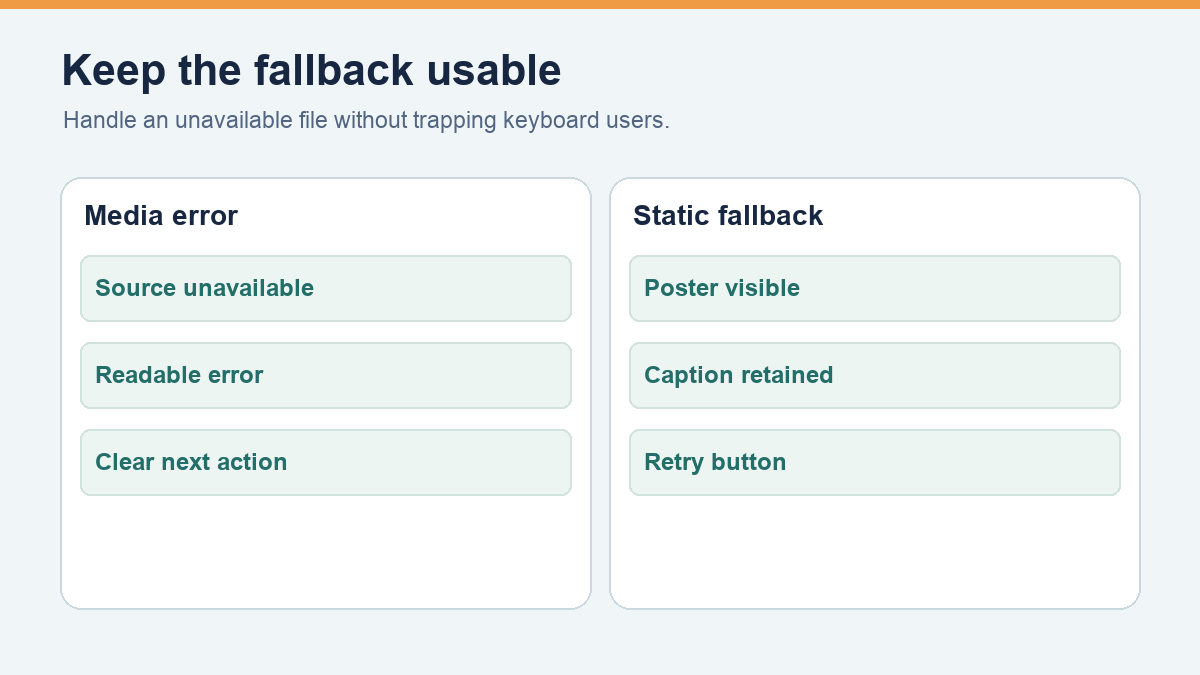
If the source is missing, keep the still and tell the viewer what happened.
Make a second short test clip if it helps
To try different movement or a portrait crop, use two reference images you own. The Sea Imagine AI free image to video generator takes start and end images with a motion prompt. Its free form lists MiniMax H3, a five-second 480p clip and no signup. Flaq AI's free video generator and AI VideoWeb's free video generator are other sources for a practice clip. Keep the downloaded file local and change the file path in the component. The network measurements above use the test pattern, so you can reproduce them without waiting for generation.
A prompt like “Camera locked; one paper flag lifts gently into frame” gives you a clear place to check the preview. The revealing frame should make sense as a still. Re-run the before-and-after request check whenever you change the component or replace the asset.